Engrave tool
The MySegmenter Software offers the Emboss/Engrave tool to add custom text to the surface of a 3D model — either recessed (engraved) or raised (embossed). The result is generated as a new node; the original model is never modified.
Steps:
-
Select a model from the dropdown, listing all models in the scene. This is your source model — it stays unchanged throughout.
-
Choose a mode:
2.1 Engrave (default): recesses the text into the surface
2.2 Emboss: raises the text above the surface.
-
Enter your text in the text field. Standard alphanumeric and symbolic characters are supported, on a single line. Text cannot be empty.
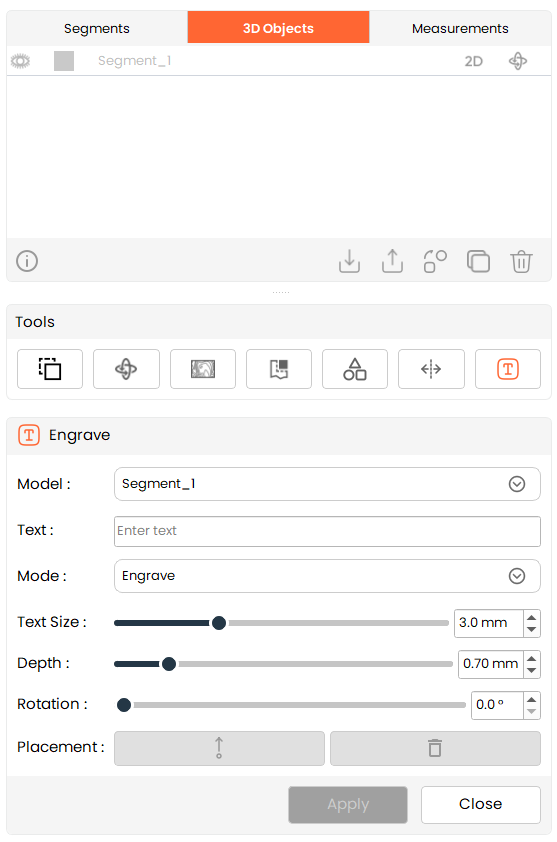
4.Adjust parameters as needed (all update the live preview once a placement exists):
-
4.1.Text height: Range: 0 – 10 mm, default: 3.00 mm
-
4.2.Depth (engrave/emboss): Range: 0 – 5 mm, default: 0.7 mm
-
4.3.Rotation: Range: Range: 0–360°, default: 0°
-
Place the text:
5.1.Click :Place: — the cursor becomes a crosshair.
5.2.Click on the model's surface to position the text.
5.3.To reposition, click Place again and click a new location; this replaces the previous placement.
5.4.Click :Delete: to remove the current placement preview and reset placement state (only enabled once a placement exists).
-
Click Apply to generate the final model.